Preparing a release
¶ Creating the next release in a story project
Once one release exists, Dizire Engine can scaffold the next one directly from the project record. This keeps the release sequence clean, preserves numbering, and carries forward the parts of the previous release that should influence the next book.
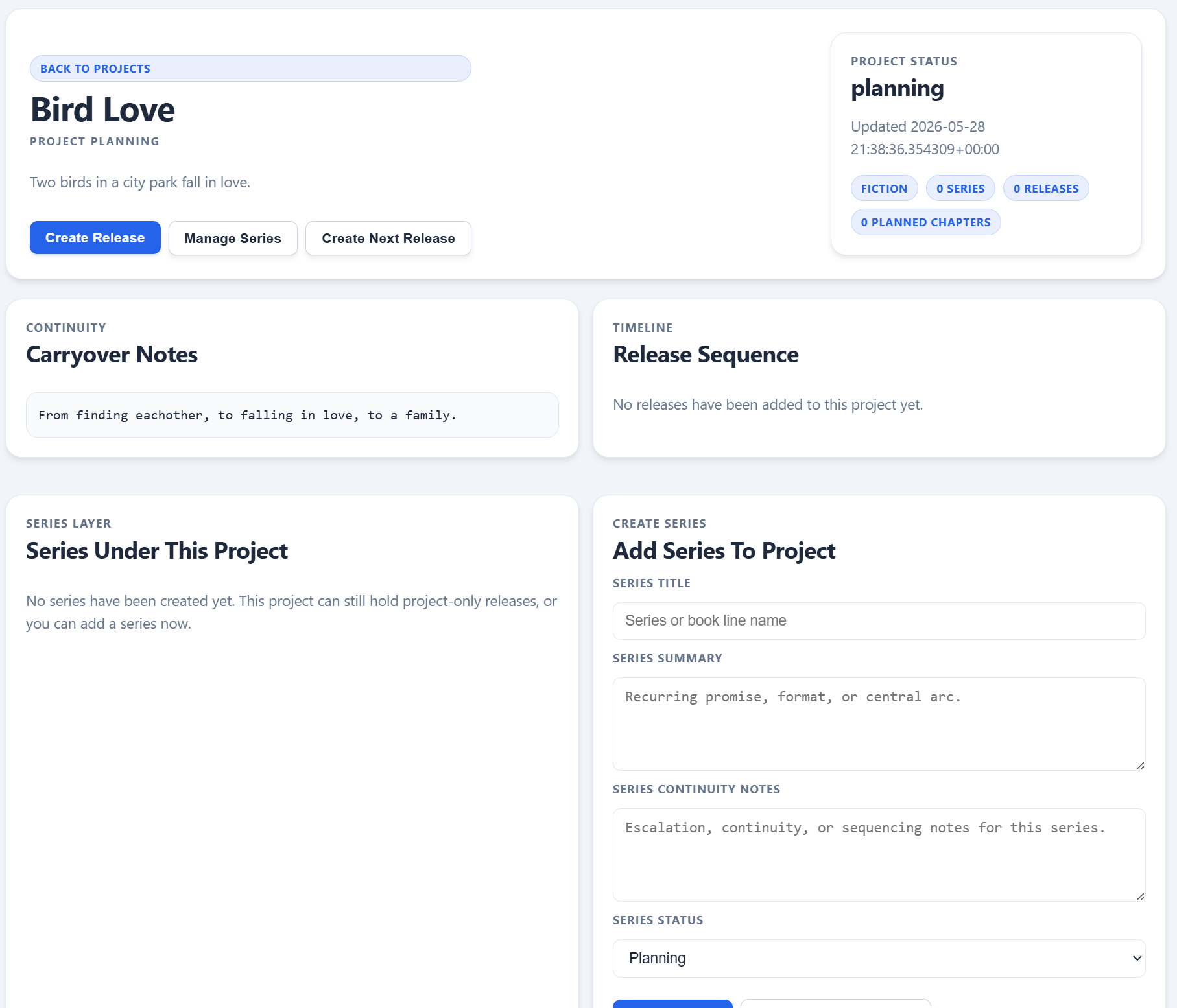
The project detail page is the cleanest place to extend a release line because it shows the existing sequence and gives you a dedicated next-release action inside that continuity context.
On this page
- Why the next-release shortcut matters
- Where to start from
- What the system copies forward
- What you should change before drafting
- When to use compose instead
Overview
¶ Use the project to extend a sequence, not to reinvent it every time
Dizire Engine treats a project as the continuity shell around a multi-release line. When you are creating the next installment, the project already knows the release sequence, the current project type, any series under that project, and the latest saved release. That makes it the best place to scaffold book two, book three, and later entries.
Where it lives
¶ Start on the project detail page when the new release belongs in an existing line
Open the project and use the hero actions on the project detail screen. That page includes Create Release, Manage Series, and Create Next Release. It also shows the project's Carryover Notes and the Release Sequence list, so you can confirm which release is actually the latest before creating the next one.
This matters because the next-release route calculates the next release number from the most recent saved release in the project. It does not ask you to guess the numbering by hand.
Copied forward
¶ The next-release shortcut brings forward the pieces that usually need continuity handoff
When you use Create Next Release, the app creates a new release in planning status and pre-fills several fields from the latest release in the project.
- Release number increases automatically by one.
- Story series is kept when the latest release already belongs to a series, or assigned automatically when the project has exactly one series.
- Release type follows the latest release, or falls back to the project type.
- Opening state is seeded from the previous release's Ending state.
- Carryover threads are copied from the previous release.
- Premise is seeded from previous carryover threads, then previous ending state, then previous premise, and only falls back to the project summary when needed.
- Tone, Setting, Target length, and Chapter count are copied from the latest release.
In practical terms, the new release opens with enough inherited context that you are extending the line instead of starting from an empty shell.
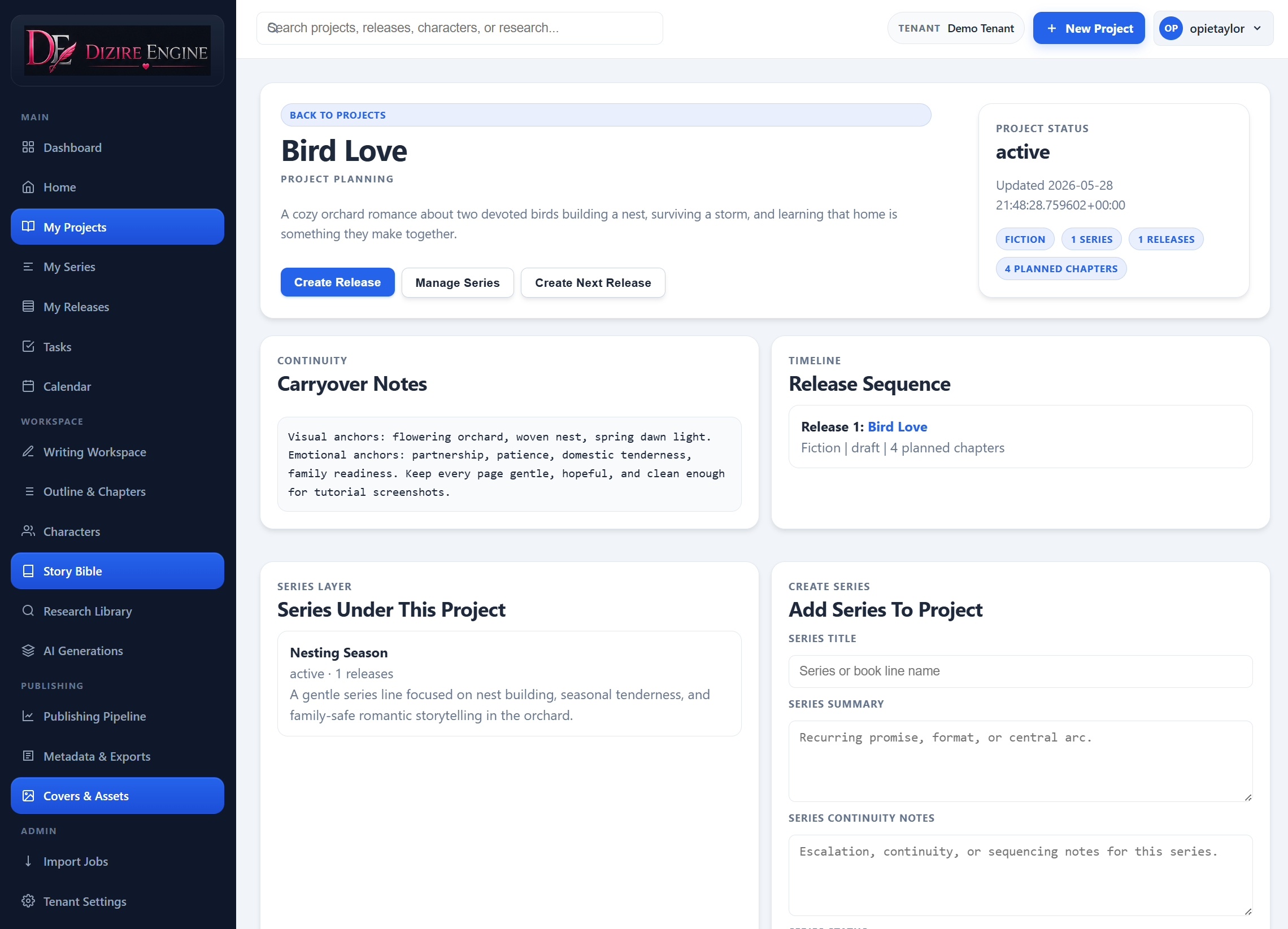
The project record is useful before you press the button because it lets you confirm the broader continuity and release order before the new scaffold is created.
After creation
¶ Open the new release and replace the defaults that should not remain generic
The next-release shortcut redirects straight into the new release editor. From there, you should immediately tighten the fields that were only meant as continuity scaffolding: Working title, Release name, Premise, and any inherited carryover text that needs refinement.
- Confirm that the inherited Opening state really matches where the new release begins.
- Cut down Carryover threads so only the threads that actually matter remain.
- Replace the placeholder title pattern with the real release name before blueprint or drafting work starts.
- Check whether the automatically chosen series is correct when the project contains multiple lines.
When not to use it
¶ Use the regular compose form when you are branching, not continuing
The project shortcut is ideal when you are creating the next sequential release in an established line. If you are instead creating a side book, moving into a different series, or intentionally breaking away from the prior release's assumptions, start from the main Compose Release form.
The compose form lets you pick the Project scaffold, choose a different Series, and set the continuity fields manually. That is better when continuation should be deliberate rather than automatic.
Next step
¶ Where to go next
Once the new release exists, the next job is making sure the inherited continuity is being reused intentionally rather than copied blindly. Continue to Reusing continuity between releases.