Getting started
¶ Understanding the dashboard and left-hand navigation
Dizire Engine becomes much easier to use once you know what each sidebar area is responsible for. This page explains the main navigation order, what belongs in each section, and which screens new writers should care about first.
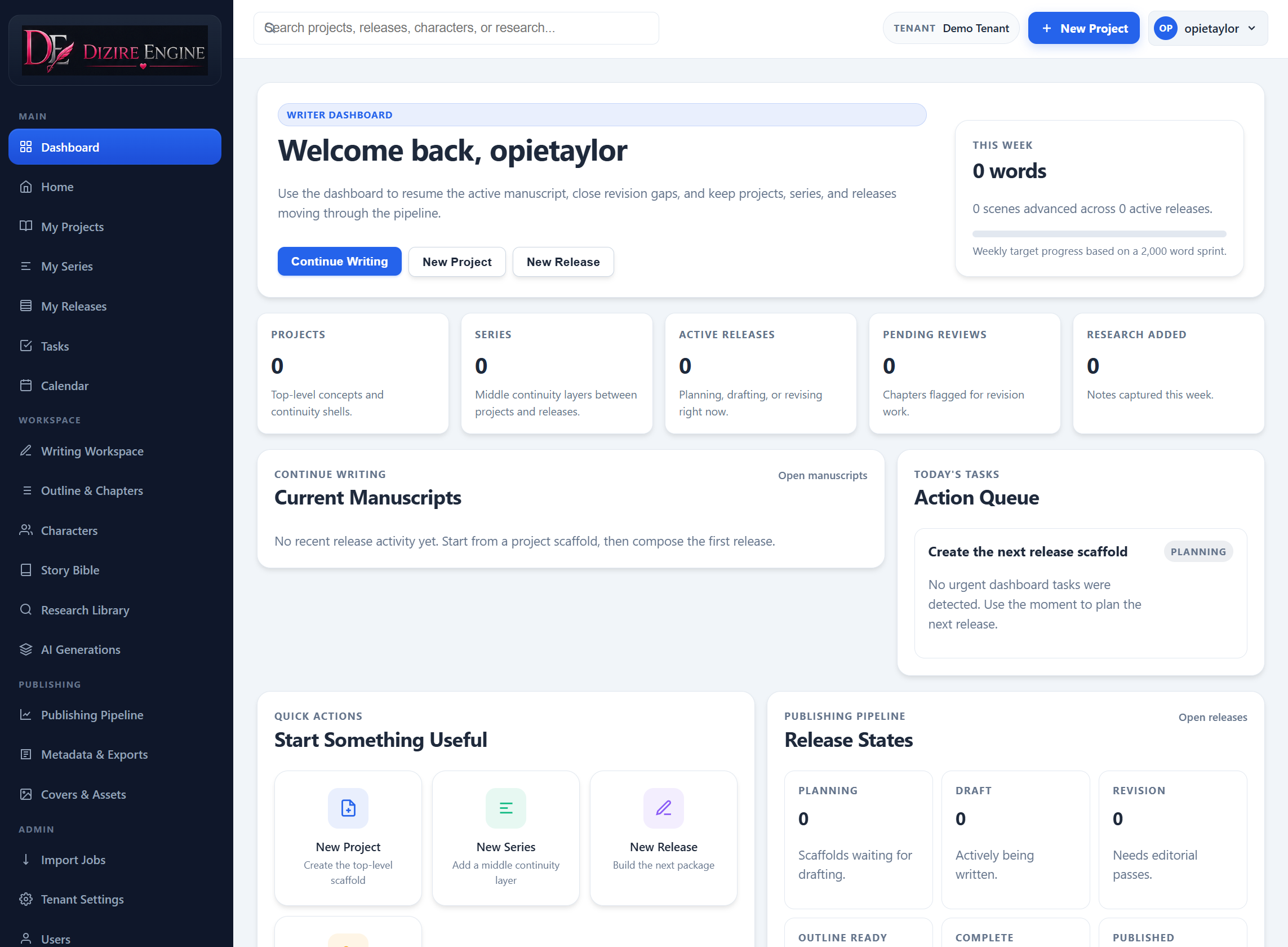
The dashboard is the clearest orientation screen because it shows the full sidebar, the top search bar, quick actions, and the main workflow counts in one view.
On this page
- How to think about the sidebar
- Main navigation links
- Studio section
- Settings and account area
- Where new users should spend time first
Overview
¶ How to think about the left-hand menu
The sidebar is not just a list of pages. It is organized by working mode. Some links are for day-to-day writing, some are for planning and release management, and some are administrative. If you understand the menu that way, it becomes much easier to know where to click next.
In broad terms, the top of the menu gets you into active author work, the middle navigation areas handle project, series, release, and workflow operations, and the lower account area shows who is signed in and lets you sign out safely.
Main navigation
¶ What each primary sidebar link is for
The current primary links appear in this order:
- Dashboard: your high-level starting page for recent activity, counts, and quick actions.
- Home: the hierarchy hub that guides you from project creation to series and then to releases.
- My Projects: your top-level creative containers and continuity shells.
- My Series: the middle layer for recurring arcs, timelines, and release lines inside a project.
- My Releases: the publishable books or installments currently in motion.
- Tasks: the current action queue built from active writing and revision work.
- Calendar: the dated activity view for recent project and release movement.
- Writing Workspace: manuscript-focused work and continuing active draft sessions.
- Characters: your reusable cast library, persona notes, and cleanup tools.
- Story Bible: project-level continuity, series structure, and related planning records.
- Research Library: imported story material and supporting source content.
- AI Generations: generated outputs such as ideas, outlines, scenes, or other AI-assisted results.
The important distinction for new users is this: Writing Workspace is where you spend drafting time, while My Projects, My Series, and My Releases are where you organize the structure around that draft.
Use the main navigation as a mode switch. The top links orient you, the middle links manage structure, and the workspace links move you into actual manuscript work.
Workflow
¶ What Home, Tasks, and Calendar are for
The new navigation no longer hides the core workflow behind a generic studio label. Instead, the app gives each planning surface a clearer name.
- Home gives you an overview of projects, series, releases, and the recommended creation order.
- Tasks pulls current writing and revision priorities into one action board.
- Calendar shows recent dated activity across projects and releases.
If the top navigation feels like your writing control panel, these workflow pages are the bridge between planning and execution.
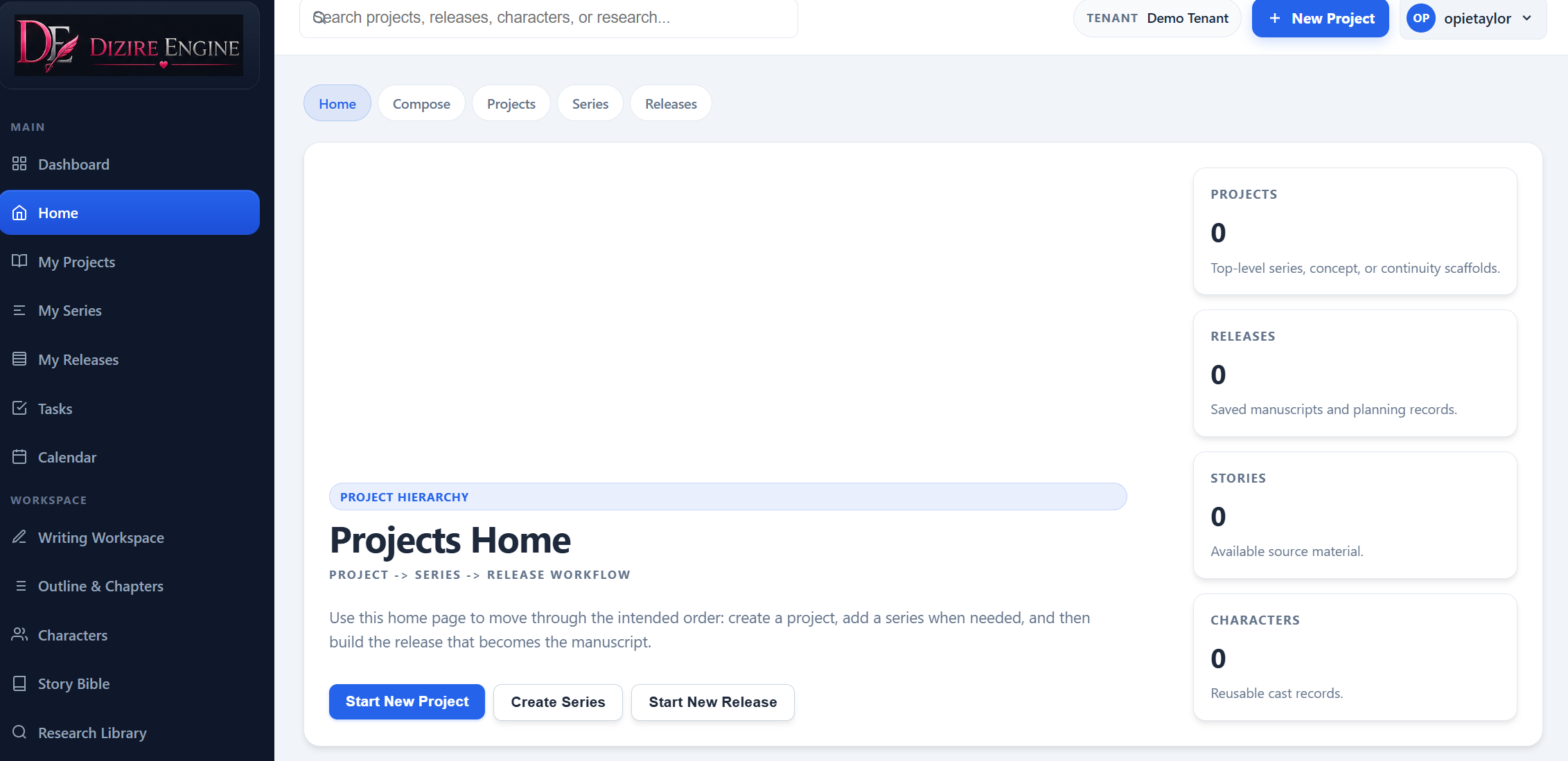
The Home screen explains the intended creation order directly inside the product: create a project, add a series only when you need it, and then build the release that becomes the manuscript.
Settings
¶ What lives under Settings and the user area
Admin users also see a Settings section with links such as Admin Console, Users, and Subscriptions. These are not the first pages a new writer should learn unless they are managing the system itself.
At the bottom of the sidebar, the signed-in user area shows the current username, the current tenant when applicable, the user role, and the Sign Out action. This is also the area to glance at if you need to confirm which account or workspace you are currently using.
Recommended starting path
¶ Where a new writer should spend time first
New users do not need to master every sidebar entry on day one. A practical learning order is:
- Open Dashboard to get your bearings.
- Review My Projects and My Series so you understand how long-form work is organized.
- Use Writing Workspace only after you know which project, series, and release you are working inside.
- Visit Characters once you need reusable cast information.
- Use Tasks and Calendar when you want a tighter view of what needs attention now.
This order keeps the product from feeling bigger than it is. First orient yourself, then structure the work, then draft, then handle operations.
Next step
¶ Where to go next
Now that the navigation has names and purpose, the next page should explain how the actual content model fits together. Continue to Projects, series, releases, chapters, and sections explained.